Meshtastic is a free, open source project that turns small radios into a way to send text messages without cell service or internet access. Think of a walkie-talkie for texting: you write a message on your phone, and your radio sends it over the air.
Nearby radios can automatically pass that message along, forming a mesh that reaches farther than one radio alone. Meshtastic uses LoRa, a long-range, low-power radio technology. It’s built for short messages, optional location sharing, and sensor readings, rather than voice calls or internet browsing.
People use it to keep in touch on hikes, coordinate at events, practice for outages, or simply chat with neighbors and experiment with radio. You need a working path between radios, so placement and the nodes around you make a big difference. Our FAQs cover the basics, and Getting Started walks you through joining.
Who is BayMesh?
BayMesh began as a community of people building and using Meshtastic across the San Francisco Bay Area. Today, the mesh stretches from Redding in the north to Monterey in the south, and east beyond Placerville into the foothills. We’re nearly 4,000 members strong: radio enthusiasts, tinkerers, neighbors, and people who just want to stay connected—all helping grow a mesh that anyone can join.
We help each other get started, test coverage, find better places for nodes, and keep messages moving around the Bay. We also maintain local guides, maps, and tools, and get together on Discord and for our weekly on-air check-in.
You don’t need a technical background or a fancy radio to participate. Bring your curiosity, ask questions, and help someone else when you can. Every useful node and friendly reply helps the community grow.
The world can be divisive. Here, we leave politics at the door—we’re all one big happy mesh.
2 - FAQs
Answers to common questions about coverage, messages, privacy, and getting connected
What is Meshtastic, in plain English?
It’s a walkie talkie for gen-z, you don’t talk - you text.
Think of sending text messages over a walkie-talkie, with no voice. Unlike a regular walkie-talkie, mesh radios automatically relay your message down the line, like a kids’ game of telephone—except they pass along the same text.
LoRa is long-range, low-power radio technology. It’s a way for radios to talk, like Wi-Fi, but designed to reach much, much farther while running much, much slower. It’s the basis of Meshtastic and is used by a number of other popular technologies today. Read more on Wikipedia.
Do I need cell service or internet access?
No. Once the app is installed and your radio is set up, it operates entirely off grid. The radios, or nodes as we call them, carry your messages over the open radio waves.
Is there a subscription or a charge for messages?
No. Meshtastic is free and open source. You just need to buy the hardware.
Does everyone need a radio?
Like a walkie-talkie, everyone who wants to send and receive messages needs their own radio, paired with their phone. Some devices have their own keyboard and screen.
Is Meshtastic the same as MeshCore?
Meshtastic and MeshCore are two different open source mesh radio projects. They aim for the same goal—off-grid mesh communication—through different means. Unfortunately, they don’t work together.
Do I need GPS? Do I have to share my location?
No, it’s entirely optional. Some devices have GPS built in, or you can share your location using your phone’s GPS.
Can I send pictures, make calls, or get internet access?
No. Meshtastic is for low-bandwidth applications like text messages, location sharing, and sensors (think weather stations). It isn’t fast enough for pictures, voice, or internet access. Your old AOL dial-up was faster than Meshtastic.
How far will my node reach?
LoRa doesn’t like “stuff” in the way. Clear air from mountaintop to mountaintop? A hundred miles is possible. Downtown San Francisco? A few blocks. Think a couple of miles as a rough everyday expectation, depending on how much stuff is in the way.
Why can I hear a node that can’t hear me?
Radios have sensitive receivers, but they don’t all have the same transmit power. A 100 mW radio indoors may hear a 1 W mountaintop node without being able to reach it back. Antennas, receiver sensitivity, buildings, and noise also affect the two directions. Try a clearer location and ask for a reply. Our troubleshooting guide explains this in more detail.
It works outside, but not inside my house. What can I do?
Again, LoRa doesn’t like stuff in the way. A second, higher node with fewer obstacles can work much better, relaying messages to your indoor or portable node. Use Client Base for the home node and consider Client Mute for an additional nearby handheld, following our role recommendations.
While connected to the home node, mark your indoor or portable nodes as favorites. Client Base prioritizes relaying traffic to and from those nodes and handles other traffic like a regular Client. Review the device-role documentation for details. Keep outdoor equipment appropriately enclosed and powered. Follow our home base station guide to set up and test the pair.
Should I use Router mode?
No. Stick with the default Client role. It already relays messages.
Why does Discord show messages that my radio never receives?
The logger collects messages uploaded by gateways across a much larger area than your radio may reach. Seeing a message there means a gateway heard it, not that a radio path exists back to your node. Hills, disconnected groups of nodes, and one-way links can all affect what you receive.
MQTT connects radios to internet services. It is optional and does not replace a working local radio path for off-grid communication.
Why isn’t my node on the map? Are all map entries reachable?
Public maps depend on nodes sharing positions and that data reaching the map service, often through MQTT. A node may be active without publishing its location. Conversely, a map entry or your app’s node list may contain old information.
Check when a node was last heard and whether it was heard over radio or via MQTT. Seeing a distant node in the list does not prove you can reach it now. Map & Data explains timestamps, missing dots, and how to test coverage.
Are my messages and location private?
Treat the default channel as public: its encryption key is published. Messages may also appear in internet-connected loggers. The OK to MQTT setting is a forwarding preference, not a way to keep public radio traffic secret.
For a private group, create a channel with a random shared key and keep its QR code private. Review location sharing separately on every enabled channel; a private chat doesn’t automatically hide positions broadcast on the public channel. Our private-use guide walks through both options. See also the official encryption overview.
Which firmware should I install? Why won’t Bluetooth reconnect?
Use the current Beta release recommended for your exact device unless you are deliberately testing Alpha firmware. Read the release notes and follow the official flashing instructions; the update method depends on the hardware. Keep a private backup of your channel settings before updating.
After a reflash or reset, you may need to forget the old Bluetooth pairing in your phone’s settings and pair again. Check the device-specific instructions if pairing still fails. Firmware updates do not travel over the LoRa mesh. See the official firmware FAQ.
Will messages wait for me if my phone or radio is off?
A powered radio can keep working when your phone disconnects. It has a limited buffer for messages to pass to the app later; it isn’t a permanent inbox, and you shouldn’t assume it will retain everything. If the radio itself is off, it cannot receive messages. Don’t expect the public mesh to replay everything you missed. See the Meshtastic overview.
Why do messages sometimes take a while?
Nodes share limited radio airtime. Relaying, retries, and a busy channel can delay messages. Wait before repeating a test, and ask for a written reply when delivery matters. If delays persist, check your link and your nodes’ broadcast intervals using Troubleshooting.
How long will the battery last? Can I leave a node plugged in?
Battery life depends on the radio, battery size, GPS, screen, Wi-Fi, traffic, and weather. Test your actual setup instead of planning around a best-case product claim. For continuous power, follow the manufacturer’s charging and temperature guidance and use a suitable power supply. Some power banks turn off when a small radio draws too little current. Our home base station guide covers placement and power for a node you leave running.
Can I rely on Meshtastic in an emergency?
It can be another way to reach people, provided your radios are charged and there is a working radio path. Practice from real locations, agree on check-in times, and keep another communication plan. Neither the public mesh nor a private channel guarantees delivery or connects you to emergency services. See Emergency Preparedness.
Where can I get help or find people to test with?
Join BayMesh on Discord or take part in the weekly net. When asking for help, include your device model, firmware version, general area, radio settings, and what you have already tried. Remove private channel keys and precise home locations from screenshots.
3 - Getting Started
From opening the box to your first reply on BayMesh
You don’t need to be a radio expert to join BayMesh. Start with one supported radio, the Meshtastic app, and a place to test. This guide takes you from a new device to a conversation.
1. Get the radio ready
If you’re still choosing, start with our hardware recommendations. Buy the version intended for the US 915 MHz band and check whether the package includes a battery, case, and antenna.
Charge the radio with the cable and power supply specified by its manufacturer. If it has a removable antenna, attach the correct antenna before powering it on. Devices such as the T1000-E have a built-in antenna.
Check whether Meshtastic is already installed. If it needs an update, use the recommended Beta release for that exact model and follow the official flashing instructions. A routine update doesn’t always require a full erase.
2. Install the app and pair
Install the official Meshtastic app while you still have internet access. The Android download page and Apple download page link to the available stores. Turn on Bluetooth and keep the radio near your phone.
Phone
Connect to your radio
Android
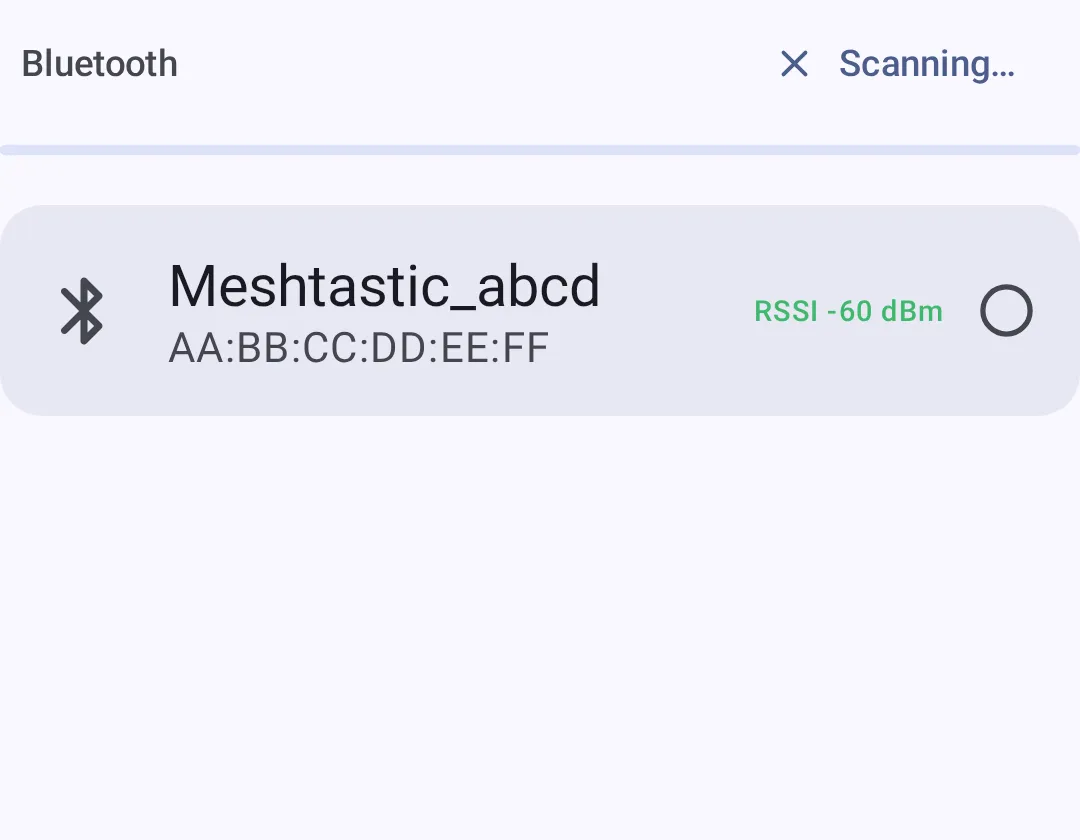
Open Meshtastic, allow the Bluetooth or Nearby Devices permissions it requests, and open Connect. Scan for Bluetooth devices, select your radio, and accept the pairing prompt. Some Android versions also require location permission for scanning.
iPhone / iPad
Open Meshtastic, allow Bluetooth access, and tap Connect. Select your radio from the nearby devices list and complete pairing.
If asked for a PIN, use the one shown by the radio or specified in its device instructions. Wait until the app shows a connection before changing radio settings. Bluetooth connects your phone to your radio; the separate LoRa link connects that radio to the mesh.
App screens change between releases. The official guides above cover the current controls. If the connection fails, start with Troubleshooting.
3. Apply BayMesh settings
Open Settings → LoRa on Android, or Settings → Radio Configuration → LoRa on Apple devices. Set:
Region: United States (US)
Modem preset: Medium Fast / Medium Range Fast
Frequency slot: Leave it at 0 (automatic) or 45. With the US region, Medium Fast preset, and default primary channel name, automatic selects slot 45, so you probably won’t need to change it.
Keep the default public primary channel: blank name and key AQ==. On a new radio, you shouldn’t need to change the other settings to get started. Save or send your changes; the radio may restart when you change some settings.
Enable OK to MQTT in the LoRa settings if you’d like to see your public messages in Discord or on Meshview. This lets participating gateways upload messages they hear from your radio.
You can also give the radio a recognizable long name and a short name of up to four characters. For more detail, see our recommended settings.
4. Send a first message
Try a clear location, such as an upper-floor window or an outdoor spot. Open the public channel in the app and send a short introduction:
Hi BayMesh! New node in Oakland near Lake Merritt. Can someone reply if you hear me?
Use a general neighborhood, not your exact home address. Give people time to reply. If nobody answers, arrange a test in Discord or join the weekly net.
An acknowledgment is useful, but a written reply is the best first test of a conversation. Receiving a distant node doesn’t prove it can hear you back. If you see traffic but can’t get a reply, work through Troubleshooting before sending more test messages.
5. Try the places you care about
Once you have a successful exchange, try the rooms, walks, or travel routes where you’ll use your radio. You can test without cellular data or Wi-Fi; keep Bluetooth on so the app stays connected to the radio.
You’re welcome to ask questions and learn as you go. Keep politics off the community channels, be kind, and help the next person get their first reply too.
3.1 - Meshtastic Basics
How Meshtastic devices exchange messages over a mesh network
Meshtastic lets you exchange short messages without cellular service or Wi-Fi. It runs on small, low-power radios that use LoRa to reach nearby devices. Each device is called a node. Your phone usually connects to your node over Bluetooth; the nodes communicate with one another over radio.
How the mesh works
When you send a message, nearby nodes can relay it across the mesh. If one node goes offline, a message may still travel through other nodes within range. Delivery depends on a working radio path and compatible settings. Terrain, buildings, antennas, and node placement all affect range; several kilometers is possible with a clear path.
Meshtastic firmware handles radio communication and message routing. The Android and iOS apps, along with a web interface, let you configure your node and send messages. Many devices can run on batteries for extended periods. Our hardware recommendations cover portable radios, DIY kits, and home nodes.
Channels and privacy
A channel gives a group shared settings for exchanging messages. Channels can use encryption, but the default public channel uses a key known to everyone. For a private group, generate a random key and share it only with members. See Private Channels and Groups for setup and location-sharing guidance.
Where to start
Meshtastic can help hikers, neighbors, and event groups communicate where cell coverage is unavailable. It can also be one part of an emergency plan, though messages need a working radio path and are not guaranteed to arrive.
Start with the getting-started guide: choose a compatible device, install its firmware, connect with the app or web interface, and apply the BayMesh settings. Then test messages from the places where you plan to use it.
3.2 - MQTT
How to connect a stationary node to Bay Area MQTT
MQTT is an advanced feature. If you’re unfamiliar with it, leave it disabled. You do not need to enable MQTT on your own node for your messages to appear in the logger.
MQTT is most useful on base stations that can receive mesh traffic and have a stable internet connection.
MQTT sends mesh data to internet services such as mesh maps and the Discord logger. Setting it up is optional. Use it only on a stationary node with a reliable internet connection, such as a rooftop node. Portable nodes need no additional setup.
This reports your node’s location along with other network data.
Radio Configuration > Channels > 0 / Primary
Uplink enabled: Enabled
Downlink enabled: Disabled
Keep downlink disabled. It sends messages from the MQTT server onto the mesh, increasing traffic and potentially degrading performance.
3.3 - Recommended Hardware
Our picks for a first node, a portable radio, or a home base station
Start with the kind of node you’ll use: something to carry, a kit to build, or a base station to leave at home. For BayMesh, choose hardware and an antenna suitable for the US 902–928 MHz band, usually sold as 915 MHz, and select Meshtastic firmware when ordering.
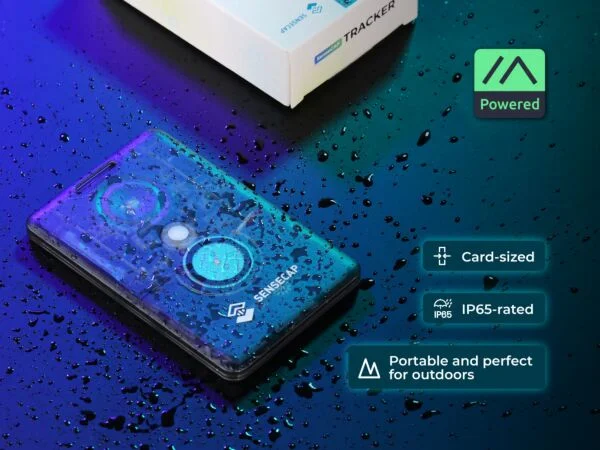
Our first pick for a simple, portable starter node. The T1000-E packs GPS, a 700 mAh battery, and an internal antenna into a slim card-shaped case. Its IP65 rating makes it a practical everyday carry, and there’s no assembly required. Use your phone to read and send messages.
Good fit: A first node, walks, hikes, and everyday use.
Highlights: Compact, lightweight, built-in GPS, and about $40 before shipping.
Tradeoffs: No screen or external antenna connector. It uses a magnetic charging/data cable, so keep that cable handy. Battery life depends on GPS use, settings, and mesh traffic.
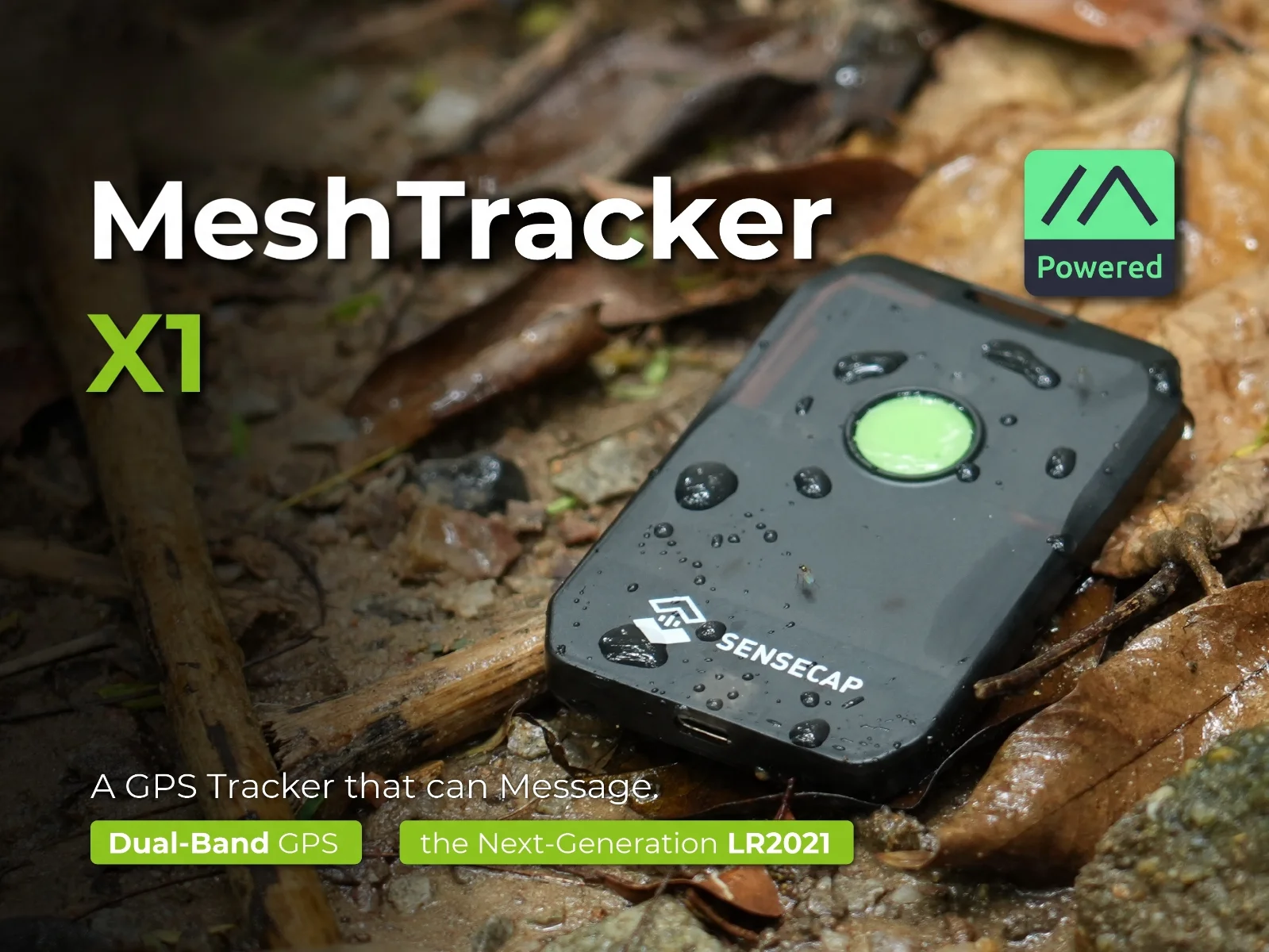
The newer X1 keeps the card format and adds an LR2021 radio, dual-band GPS, USB-C, a 1,100 mAh battery, and an IP66 rating. Like the T1000-E, it has an internal antenna and no screen.
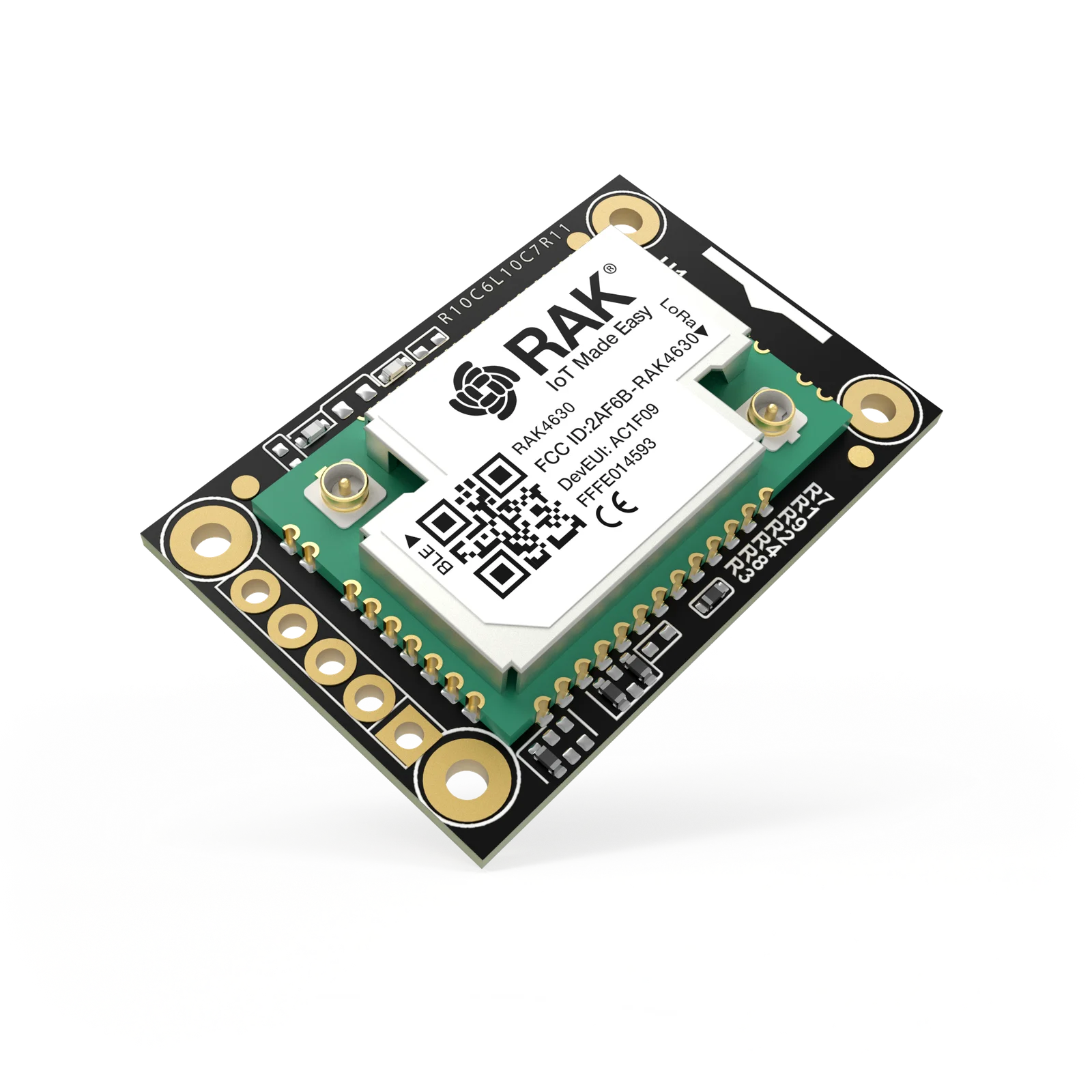
Our pick for a modular DIY build. Start with a Meshtastic starter kit built around the RAK4631 core and a compatible WisBlock base board. Add a battery, enclosure, GPS, display, or supported sensors to suit your needs. Its low power use also makes it a good foundation for a custom solar node.
Good fit: Tinkering, custom enclosures, and DIY home or solar nodes.
Highlights: Modular parts, an external antenna connection, and battery/solar connections on supported base boards.
Tradeoffs: Requires assembly and some planning. The RAK4631 core alone is not a complete radio; check which base board, antennas, battery, and enclosure your kit includes.
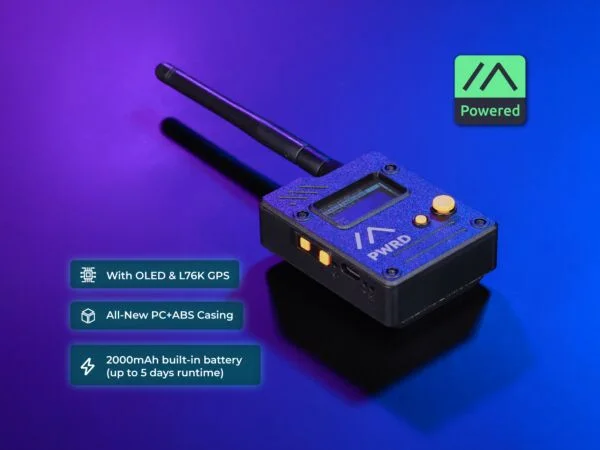
Our pick for a portable node with a screen and external antenna. The L1 Pro combines an efficient nRF52840 processor, an SX1262 radio, and GPS with a 1.3-inch OLED, a case, and a 2,000 mAh battery. It’s a complete handheld with no assembly required.
Good fit: A ready-to-use portable radio with a display.
Highlights: GPS, OLED display, USB-C, and a replaceable external antenna.
Tradeoffs: Bulkier than a card tracker. Don’t assume the handheld case is weatherproof.
Our pick for a powered home base station. With 1 watt (1,000 mW) of transmit power for US operation, the Station G3 is more powerful than any other radio on this page. Its modular design includes an ESP32-S3 host, an OLED display, an SMA antenna connector, and an adjustable receive amplifier. The receive settings can help you adapt it to a quiet or noisy radio environment.
Good fit: A fixed installation with a good antenna location and reliable external power.
Highlights: 1-watt transmit power, replaceable boards, and adjustable radio hardware.
Tradeoffs: No built-in battery. It needs a separate 15 V USB-C PD or 9–19 V DC supply rated at least 25 W; an ordinary USB phone charger may not work. Choose the complete node, rather than a motherboard or RF-board bundle.
Its power requirements make it best suited to a fixed location. Follow the manufacturer’s setup instructions to select the correct transmit-power setting.
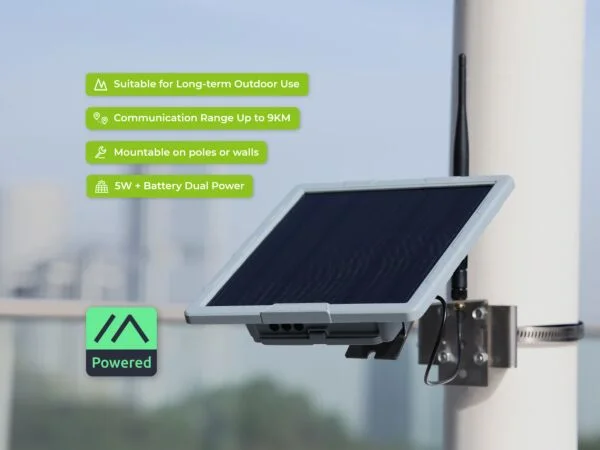
Our pick for an at-home solar base station. The P1-Pro combines a 5 W solar panel, an IPX6 enclosure, GPS, an external antenna, and four included 3,350 mAh 18650 cells. It’s a convenient option for a sunny outdoor spot where running power would be awkward.
Good fit: A home node with a clear radio path and good sun exposure.
Highlights: Solar charging and batteries in one package, with low-power nRF52840/SX1262 hardware.
Tradeoffs: Shade, fog, and winter weather affect charging. Monitor the battery through several cloudy days before relying on the installation. The cheaper P1 omits the Pro’s GPS and batteries.
For a home installation, we recommend Client Base (CLIENT_BASE). While connected to the solar node, mark your handheld or indoor nodes as favorites so it prioritizes relaying traffic to and from them. It handles other traffic like a regular Client. Follow our recommended settings and the Client Base documentation.
Join BayMesh, choose the right device role, and share the airwaves considerately
These are BayMesh’s local settings. Apply them to each radio you want to use on the community mesh, then test messages in both directions. Start with Getting Started if you haven’t paired your radio yet.
Connect to BayMesh
Setting
BayMesh recommendation
Why it matters
Region
United States (US)
Selects the regional radio band and limits.
Modem preset
Medium Fast (also called Medium Range Fast)
Radios need compatible modem settings to communicate.
Frequency slot
45, or 0 (automatic) with the default primary channel name
Automatic selects 45 with US / Medium Fast and the default name. Set 45 explicitly if you rename the primary channel.
Primary channel name
Blank
Uses the default public channel name.
Primary channel key
AQ==
The published public key; anyone can read this channel.
OK to MQTT
Enable if you want your public messages online
Lets gateways share messages they hear with Discord and Meshview. Anyone on the internet can then see them.
Licensed Operator
Off
Use this setting for BayMesh even if you hold an amateur radio license. See Licensed Operations.
On Android, look under Settings → LoRa. On Apple devices, use Settings → Radio Configuration → LoRa. Save or send the changes and let the radio reconnect if it restarts. Menu wording can vary by app version; see the official initial setup guide.
Choose a descriptive Long Name, such as your name or Discord handle, and a Short Name of up to four characters. Give each of your radios a distinct name. Only put contact details in the name if you’re comfortable making them public.
Choose a role for your setup
Your setup
Recommended role
How to use it
One everyday radio, at home or on the move
Client (CLIENT)
A good starting point. It sends your messages and can relay other traffic.
An extra radio carried alongside another node, or several radios in one place
Client Mute (CLIENT_MUTE) for the extra nodes
Sends and receives its own traffic without adding duplicate relays. Keep a well-placed Client or Client Base available.
A home node serving your handheld or indoor radios
Client Base (CLIENT_BASE)
While connected to the base, favorite the radios it should serve. See Home Base Station.
A planned site serving the wider community
Coordinate with BayMesh first
Start the discussion before selecting an infrastructure role or installing equipment. See Hosting a Node.
A vehicle does not automatically need Client Mute: a single mobile node can still be a useful Client. Choose Mute when another nearby node already provides the relay you need. Router mode is not a range boost, and a solar panel or rooftop does not by itself justify an infrastructure role. Client Base is our recommendation for a home solar base station.
Client Base gives special relay treatment to traffic to and from its favorited nodes; it handles other traffic like a Client. Favoriting belongs on the base radio, not just on your handheld. See the official device-role reference.
Hop limits
These are the existing BayMesh recommendations, rather than the firmware defaults:
Node use
Hop limit
Stationary relay, including a home Client Base
4; up to 5 where needed
Personal or chat node
6; up to 7 where needed
The firmware default is 3. A hop limit allows traffic through a certain number of relays; it doesn’t increase your radio’s transmit power. More hops can add traffic, so don’t raise the limit just because a test failed. First establish a working link to another node. See Troubleshooting.
Position and telemetry
Share only the location detail you want others to see. Turn off position sharing on the public channel if you don’t want to publish your location, or choose an appropriate position precision. Check every enabled channel: adding a private channel doesn’t hide broadcasts on the public one. See Private Channels and Groups.
Automatic update
Recommended interval
Stationary position reports
At least 6 hours
Device and environmental metrics
At least 6 hours (21,600 seconds)
Position while moving, if wanted
Smart Position with a minimum interval of 10 minutes and a distance trigger of 100–130 meters
These intervals keep background broadcasts from crowding out conversations. The distance setting is in meters; see the Smart Position controls.
Neighbor Info is optional and does not improve routing. Current firmware restricts sending it over LoRa on the default public channel. If your setup supports it and you enable it, use an interval of 4 hours / 14,400 seconds. See the module documentation.
Internet sharing and MQTT
You don’t need MQTT on your portable radio to use BayMesh.
OK to MQTT: Enable this in the LoRa settings if you want your public messages to appear in Discord or on Meshview. It lets participating gateways upload messages they hear from you, which means anyone on the internet can see those messages. A gateway still needs to hear your radio. Leaving it off does not make the public radio channel private.
Ignore MQTT: Optional. Enable it to ignore traffic downlinked from the internet.
Run a gateway: For a stationary node with a reliable internet connection, follow our MQTT guide.
Share the mesh
BayMesh brings together people from across the Bay Area. The world can be divisive; on the mesh, we’re one big happy mesh. Keep politics and campaigning off the community channels. Welcome newcomers, be patient with questions, and treat one another with respect.
Make tests useful. Send a short introduction with your general area and ask for a reply. Give people time to respond before trying again.
Use traceroute sparingly. Run it to answer a specific question, then wait. Repeated requests and automated tests consume shared airtime.
Keep broadcasts modest. Use the position and telemetry intervals above, and avoid rapid beacons or repeated status messages.
Coordinate infrastructure. Talk with the community before changing shared nodes or adding a Router. A well-placed Client can already help.
Keep private details private. Public messages may reach internet loggers. Don’t post channel keys, someone else’s precise location, or personal information without permission.
Keep in touch and stay current
Join Discord to arrange a test or ask for help. You can fill out the optional registration form, or enter /linknode !nodeid in a Discord logger channel to link your node.
Use the current recommended Beta firmware for your exact device; Alpha releases are for testing. Read the release notes, keep a private backup of your settings, and follow the official flashing instructions.
4 - Home Base Station
Give your handhelds a better radio path from home
A home base station is a node you leave in a good radio location while you carry a smaller node. From an attic, upper-floor window, or suitable outdoor mount, it may hear nodes your handheld cannot. A higher location helps only if the radio has a usable path to your handheld and the rest of the mesh, so test before mounting anything permanently.
Set up the pair
Choose hardware you can power reliably. Our hardware recommendations include modular and ready-to-use options. Use an antenna suited to your device and location.
Apply the BayMesh recommended settings to both nodes. Give each a distinct long and short name so you can tell them apart.
Set the home node’s device role to Client Base (CLIENT_BASE). This role handles general traffic like Client and prioritizes rebroadcasts to or from nodes you mark as favorites on the base station. Leave your handheld on Client, or use Client Mute if it stays near the base and does not need to relay other traffic.
Connect your app to the base station, find each of your handhelds in its node list, and mark them as favorites there. Favoriting the base on a handheld does not configure the base’s priority behavior. Check the official device-role guide for the controls in your app and firmware.
Place and power the home node
HEIGHT MAKES RIGHT. The higher and clearer the location, the better. Even getting the antenna three feet above your chimney on a short pole can dramatically improve reception compared with keeping it inside the house.
Try a few locations before settling on one. Check whether the base can hear your handheld from the rooms and outdoor spots you use, and whether it can exchange messages with other BayMesh nodes. Keep the radio, antenna, and cable arrangement appropriate for the site; protect outdoor equipment from weather and arrange mounting with the property owner.
A base station needs continuous power to be useful when you are away. For an indoor node, use a dependable power supply and consider backup power. For a solar node, size and monitor the battery for cloudy days and winter conditions. Internet access is optional for radio messaging; MQTT is a separate feature.
Test the path
Send a short message from each handheld while near home, then from the places where you expect to use it. Ask another person to reply so you can test both directions. Repeat after moving the base or changing its antenna. A visible node or a map entry does not prove that messages can travel between your radios today.
If the handheld cannot reach the base, changing the base’s role will not create that first radio link. Improve placement or try a better antenna location, then test again. See the official role recommendations for more on Client, Client Mute, and Client Base.
5 - Public Channels
Public BayMesh channels and their shared keys
MediumFast is the default public channel. Start there to connect with the BayMesh community. See Recommended Settings for radio setup.
These channels and keys are public. Messages on them are not private.
Known public channels
This list is not exhaustive; other public channels may exist. Share additions or corrections in Discord.
Channel
Key type
PSK
Notes
MediumFast
8-bit
AQ==
Default public channel
NoBots
8-bit
NQ==
Ham
8-bit
CQ==
MeshQuake
8-bit
EQ==
BayMeshNews
8-bit
5g==
SF
8-bit
SA==
San Francisco
Test
8-bit
TQ==
CRUZ
8-bit
NA==
Santa Cruz
Boozin'
8-bit
ew==
First
8-bit
1A==
Exercise your First Amendment rights
Retro
8-bit
eQ==
For Retro stuff
TheBadPlace
8-bit
5g==
Oakland
Not specified
OA==
Berkeley
No PSK
None
6 - Troubleshooting
Work through pairing, coverage, message delivery, and power problems
Start with the symptom below and change one thing at a time. Write down what changed and whether it helped. A nearby test partner makes it much easier to separate a settings problem from a coverage problem.
My phone won’t connect
Charge and power on the radio. Keep it near your phone and enable Bluetooth.
Open the Meshtastic app and select the correct radio. Allow the Bluetooth or Nearby Devices permissions the app requests.
Check the pairing PIN on the radio or in its device instructions. Disconnect another phone or computer that may already be using it.
Restart the app and radio. After a reflash or reset, forget the old pairing in your phone’s Bluetooth settings, then pair again through the app.
Check the Android or Apple guide for your connection method. A USB connection needs a data-capable cable and support from that device and client.
Why don’t I see any nodes or receive messages?
Compare US region, Medium Fast preset, and frequency slot 45 with our recommended settings. Check the public channel name and key too. Factory settings may use a different preset.
Check that the radio is powered and the app is connected to the right device. If your radio uses an external antenna, check that it’s appropriate for 915 MHz and the connectors match. Power off before attaching or changing it.
Move to a higher, clearer spot, away from your body, metal, and nearby electronics. Try outside as well as at a window; some windows attenuate radio signals.
Allow time for traffic. A quiet node list isn’t an immediate verdict on coverage. Arrange a short exchange with a nearby member through Discord.
If you have a second radio, compare their settings and test a few meters apart. If that works, move farther apart gradually.
Map dots and internet logger messages can help you find someone to test with, but they don’t establish a radio path. Read Map & Data before treating a distant node as a reachable neighbor.
If your app offers local mesh discovery, it can help identify nearby activity. Follow BayMesh’s settings for the community network; settings from another city’s guide may put you on a different mesh. See the official joining guide.
I can hear others, but they can’t hear me
Reception and transmission don’t have the same reach in every setup. LoRa radios have sensitive receivers that can decode very weak signals, while their transmit power varies by model. The receiving conditions at the far end matter too.
For example, your 100 mW radio inside a house may hear a 1 W node on a mountaintop, yet the mountaintop node may not hear your reply. The hilltop transmitter has ten times the power. Walls, antenna differences, receiver sensitivity, and local noise also affect whether each direction works. Hearing that node proves only that its message reached you.
Move your radio outside or higher and ask for a reply to a short test message. If that helps, consider a home base station with better placement. Increasing the hop limit cannot repair this first link, and increasing your transmit power alone doesn’t solve every reception problem. Meshtastic’s radio settings reference explains the factors behind radio range.
My message says acknowledged, but nobody replies
A channel acknowledgment is evidence that another node heard and relayed the message. It isn’t a read receipt, and it doesn’t prove the intended person received it. A direct-message acknowledgment comes from the destination radio, but still doesn’t tell you whether a person read the message.
Ask a specific person for a written reply when confirmation matters. If an acknowledgment is missing, the original message or the return acknowledgment may have been lost. Avoid sending the same message repeatedly in quick succession. See the official message-status explanations.
Messages are slow or unreliable
LoRa has limited capacity. Relays, retries, and other users share the same airtime. Allow time for delivery, keep messages short, and compare results with a nearby test partner before changing settings.
Check for frequent position reports, telemetry, automated tests, or repeated traceroutes from your own nodes. Use our recommended broadcast intervals. A higher hop limit can increase traffic without improving a weak link.
My radio restarts or the battery drains quickly
Fully charge it with a known-good cable and a power supply that meets the manufacturer’s requirements. A restart during transmission can point to a power problem.
Check the device’s power settings and whether Wi-Fi, GPS, a bright screen, or frequent broadcasts are consuming power you don’t need to use.
If using a USB power bank, check that it stays on with the radio’s small load. Some banks switch off automatically.
For a solar node, compare battery levels over several days, including cloudy weather. Check shade, panel orientation, connections, and the manufacturer’s charging temperature limits.
Record the firmware version and when the problem occurs. Follow the device’s instructions before reflashing or resetting; save your settings privately first.
Battery life varies considerably by device and configuration. Measure your actual setup before depending on it for a trip or outage.
Device model and antenna:
Firmware version and phone/app version:
General area (no exact home address needed):
Region / preset / frequency slot / role / hop limit:
Power source and placement:
What I expected:
What actually happened, including message status:
What I've tried and what changed:
Remove private keys, channel QR codes, precise locations, and personal information from screenshots. If you can reproduce the problem with a nearby second radio, include those results too.
7 - Weekly Net
How to participate in our weekly Meshtastic net
Wednesdays at 5 p.m., on the mesh and in a Discord voice channel.
Meshtastic Net
Check in anytime between 5 and 6 p.m. using this format: LONG NAME - CITY #BayMeshNet. For example: Ko6cnt Base - Santa Clara #BayMeshNet.
A Discord voice call starts at 5 p.m. for general discussion of Meshtastic in the Bay Area.
8 - Private Channels and Groups
Choose between private conversations on BayMesh and a separate radio mesh
Meshtastic can help friends, families, and neighbors exchange short messages without cellular service. You can hold private conversations on the community mesh or build a separate mesh for your group. Decide which approach you need before changing your settings.
Private conversations on BayMesh
Keep the BayMesh radio settings: US region, Medium Fast preset, and frequency slot 45. Leave the public primary channel in place, then add a secondary channel with a custom name and a newly generated random encryption key. Give each group member the same channel name and key using the app’s channel-sharing link or QR code.
Treat the link or QR code like a password: it contains the key. The default public key, AQ==, is known to everyone and does not make a conversation private. Use the app’s key generator, preferably for a 256-bit key, instead of a memorable word. See the official channel configuration and encryption guide.
Your group shares radio airtime with BayMesh. Other nodes may relay your encrypted packets without being able to read the messages. A private channel does not reserve capacity or guarantee delivery.
A separate mesh for your group
For a group that wants to operate separately from BayMesh:
Set every radio to the US region and the same modem preset. Start with the Client role so your nodes can relay for one another.
Give the primary channel a custom name and generate a random encryption key. Share those settings privately with every member.
Set Frequency Slot to 0 (automatic) if you want Meshtastic to choose a slot based on the primary channel name. Changing only the encryption key does not change the frequency. Renaming the primary channel affects automatic slot selection; it does not override a manually selected slot.
Check the resulting frequency. A custom name can still select the same slot as another mesh. To operate separately, choose an available valid slot other than BayMesh’s 45 for Medium Fast, and explicitly set it on every radio. Ask in Discord if you need help coordinating locally.
Test messages in both directions before separating the radios.
The official LoRa configuration guide explains automatic and manual slot selection. A separate frequency means you cannot count on BayMesh nodes to relay your messages. Your group needs its own connected radio path.
Keep location and internet sharing intentional
Review position sharing on every enabled channel, including the public primary channel. A private secondary chat does not automatically hide location broadcasts sent elsewhere. Disable location sharing where you don’t need it, or choose an appropriate precision. See Meshtastic’s location-sharing guidance.
For a radio-only group, disable MQTT and channel uplinks/downlinks on your nodes. Keep your private keys out of public screenshots and support requests. If a radio or key is lost, generate a new group key and update the remaining radios.
Practice before an outage
A private key controls who can read your group messages; it doesn’t improve coverage or guarantee delivery. Test messages in both directions from the places you will actually use your radios.
For a household check-in plan, example messages, a charging checklist, and a practice drill, continue to Emergency Preparedness.
9 - Emergency Preparedness
Make a practical family check-in plan and test it before an outage
Meshtastic can give your household another way to exchange short messages when cellular service is unavailable. It works only when charged radios have a usable path between them, directly or through other nodes. Plan for missed messages, and keep other ways to contact one another.
Make a simple check-in plan
Choose who will carry a radio, where they expect to use it, and one or two places to meet if messaging fails. Agree on check-in times and who should reply to confirm receipt. Keep messages short and specific: where you are, whether you are safe, what you need, and what you plan to do next.
For example:
SAFE - home - 6:10 pm - power out - next check-in 7 pm
AT library - need pickup - reply with ETA
MOVING to school entrance - will check in at 7:30 pm
A radio acknowledgment does not mean a person read your message. Ask for a written reply when confirmation matters. If no reply arrives, follow your meeting plan rather than assuming the other person received it.
Prepare the equipment
Charge each radio and phone, and keep the right cables and a spare power source together.
Label the radios so each person knows which one is theirs. Save a short setup guide where your household can read it offline.
Practice connecting the app with cellular data and Wi-Fi off, leaving Bluetooth on.
Run a short drill
Send messages from home, work, school pickup points, and likely travel routes. Have each person reply, and note where messages fail in either direction. Repeat the test at different times or after changing radio placement. Hills, buildings, low batteries, and unavailable relay nodes can change the path. If you use a home base station, test the handheld-to-base link too.
Review the plan periodically: people move, batteries age, and the mesh changes. Meshtastic does not contact 911 or a monitored rescue service, and neither BayMesh nor a private channel guarantees delivery. Use available emergency services when you need them.
10 - Licensed Operations
How amateur-radio operation differs from joining the public BayMesh network
You do not need an amateur radio license to join BayMesh with appropriate US-region hardware operated within applicable limits. If you have a call sign, you can use it as your node name while leaving Licensed Operator off and following our recommended settings.
Licensed Operator changes how your station operates. Enable it only when you intend to operate under amateur radio rules. The guidance below concerns US operation.
What changes in amateur-radio mode?
Amateur operation can support experiments with higher transmit power and different antenna systems. It also brings different responsibilities:
Messages must not be encrypted to conceal their meaning. That includes a private family channel. The relevant restriction is 47 CFR § 97.113(a)(4).
Identify your station. Set your long name to your call sign. US rules require identification at the end of a communication and at least every 10 minutes during a communication; make sure your setup meets those requirements. See § 97.119.
Observe power limits. For spread-spectrum emissions, § 97.313(j) limits transmitter output to 10 W PEP. The same section requires using only the power needed for communication. This is not a recommendation to run 10 W, and the radio’s advertised output does not establish what your installation may legally use.
Keep the activity appropriate for amateur radio. Business traffic and other prohibited transmissions remain subject to § 97.113.
The official Meshtastic amateur radio FAQ explains why licensed mode and the normal encrypted public mesh are not interoperable. A node in licensed mode cannot participate in BayMesh’s public channel.
Setting up a licensed experiment
Coordinate with the other operators first. Agree on an appropriate frequency, preset, unencrypted channel, and test schedule. Keep experiments separate from the public mesh and follow the band privileges, station-control requirements, and interference rules that apply to your station.
In the app’s User settings, set Long Name to your call sign and enable Licensed Operator (also called Is Licensed). Review the channel configuration and confirm that encryption is disabled. Check your firmware’s behavior and identification settings; a single toggle does not address every operating requirement. The official user configuration guide describes the controls.
Check the antenna, feed line, power supply, cooling, and RF-exposure requirements before increasing output power. A better location often helps a link more than additional power, especially when the other end is a small handheld.
Returning to BayMesh
Disable Licensed Operator and restore the public mesh’s recommended settings, including the primary channel name and key, US region, Medium Fast preset, and slot 45. Restore suitable transmit-power settings, including any hardware power jumpers, before transmitting. Confirm you can exchange messages with another BayMesh node.
For private family or neighborhood messaging, use the regular encrypted mode described in Private Channels and Groups.
11 - Hosting a Node
Questions to consider before placing a Meshtastic node on your property
A well-placed node can help nearby people exchange messages, especially when it has a clear view beyond one building or hillside. If you’re considering a node at your home or another property, start with what the site can support and who will look after the equipment. You can begin with a small, reversible trial.
How much space does it take?
The radio itself can fit in a small enclosure, but the full installation depends on the antenna, mount, power supply, and any solar panel. An indoor window node may need only a shelf and a power outlet; an outdoor solar setup needs more room and a suitable mount. Agree on the actual dimensions and appearance of the proposed equipment before installing it.
What would the site need?
Location and mount: Is there an upper-floor window, attic, balcony, or outdoor position with a useful radio view? How would an antenna or enclosure be mounted without damaging the property? An outdoor installation needs suitable weather protection, cable routing, and permission from the property owner or manager.
Power: Is there a safe, continuous power source? If the site relies on solar, where would a panel get sun, and how would the battery be monitored during cloudy weather?
Internet: A node can relay radio messages without internet access. MQTT is optional and requires a reliable connection if you choose to use it. See our MQTT guide.
Access and upkeep: Who can reach the node to update firmware, check power, clean or repair equipment, and troubleshoot it after an outage? Who will notice if it stops working?
Our hardware recommendations show examples of home and solar nodes. A good first step is to test a portable node at the proposed location and compare it with a lower or indoor spot. Apply the BayMesh recommended settings, starting with the Client role. A roof location alone does not call for Router mode.
Agree on ownership and removal
Before installing anything, decide who owns the radio, antenna, mount, and power equipment; who pays for power, connectivity, and replacement parts; and who can change settings or remove the installation. If someone else owns or manages the property, get their approval for the specific location and mounting method. Decide how the equipment will be removed and the site restored if circumstances change.
Hosting does not require a permanent commitment. If you’d like local feedback on a possible site, ask in BayMesh Discord with a general location, approximate height, and the kind of mount and power you can offer. Keep your exact address private until you choose to share it with someone you trust.
12 - Community Resources
Meshtastic downloads, hardware comparisons, presentations, and community resources